How to remove a background without losing hair and fine edges
Last updated October 17, 2026
Short answer
Use a computer and choose Detailed under Quality: it looks at your photo in more detail and keeps loose hair, fur and soft edges much better. Start from a sharp photo where the hair stands out from a plain background. Before you save, check the edges on a dark color and on a light one, where any leftover of the old background shows up.
Step by step
- Use a computer with an up-to-date browser such as Chrome or Edge. Detailed needs more memory than a phone browser allows, so phones use the lighter setting.
- Open your photo on cutoutfree.com.
- Choose Detailed under Quality. On fast computers it’s already chosen. It takes a little longer, and switching doesn’t use another of your free images.
- Check the edges. Click a dark color under Background, then a light one. A thin line of the old background shows up on one of them if something is left over.
- Save it. Keep the checkerboard for a transparent PNG, or keep the color you like.
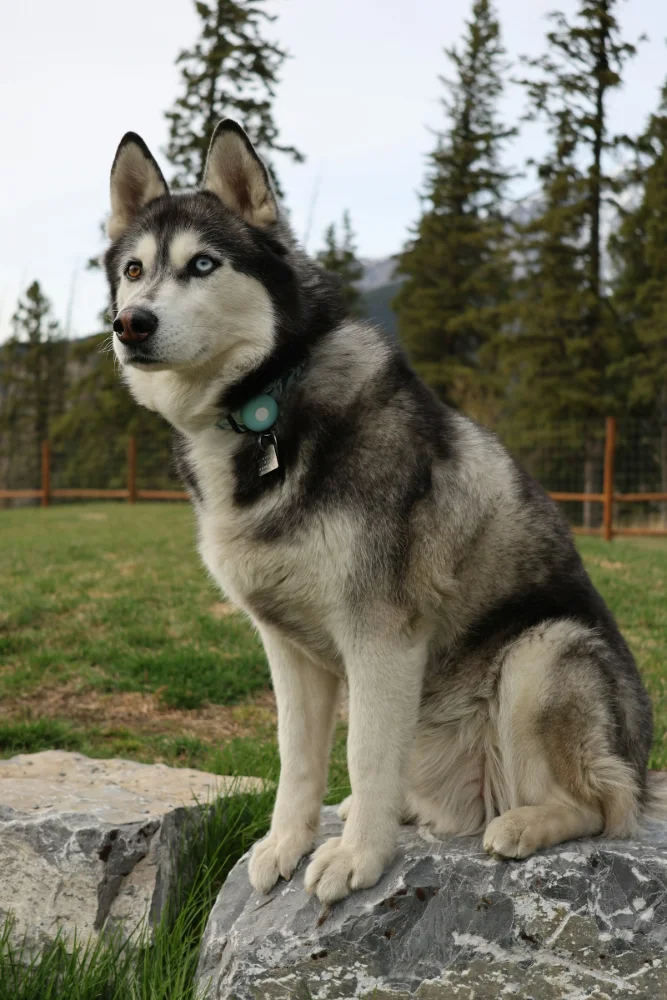 Before
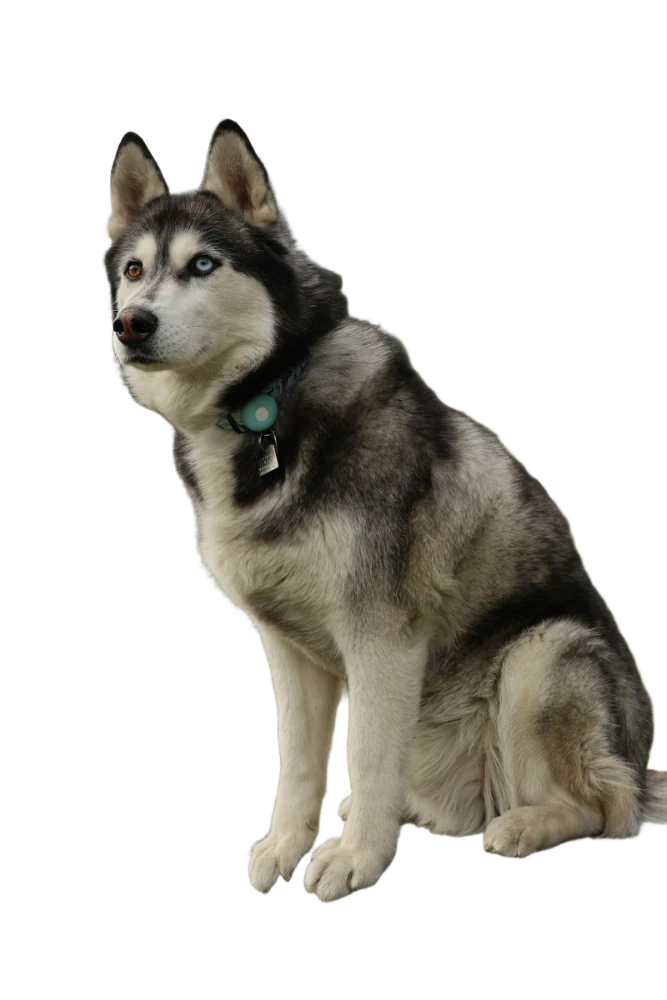 After
AfterWhy hair is hard
A single hair is often thinner than a pixel, and loose hair is partly see-through: the old background shows between the strands. A good background remover doesn’t just cut along a line; it decides for every pixel how much of it is hair, and keeps the edge soft. That takes a bigger AI and more detail, which is exactly what Detailed adds.
Photos that give the cleanest edges
- A plain background that contrasts with the hair: dark hair against a light wall, blond hair against a darker one.
- A sharp photo. Motion blur and out-of-focus hair turn into soft, vague edges.
- Even light from the front. Strong light from behind makes the hair glow, which is harder to separate.
- No busy patterns right behind the head, such as leaves, branches or striped wallpaper.
- The subject large in the frame. The AI looks at the whole photo at a fixed size, so a head that fills the picture gets far more detail than a small one in the distance.
What CutOutFree can’t do yet
There is no brush yet to erase or restore parts of the cutout by hand. If a spot isn’t right, try the other Quality setting, or a photo with a plainer background behind the hair. For most portraits and pets, Detailed gets it right the first time.
See more results in real before-and-after examples.
Try it now
Free for 10 photos a day, no sign-up, nothing uploaded.
Remove a backgroundQuestions
Why do the hair edges look blocky or cut off?
Try Detailed on a computer. Phones and the Fast setting use a lighter AI, which can lose loose strands on difficult photos.
Can I use Detailed on my phone?
Not yet. Detailed needs more memory than phone browsers allow, so it’s available on computers with an up-to-date browser.
Does switching to Detailed use another free image?
No. Running the same photo again with the other setting is free. Only a new photo counts.
Why is there a thin outline around the hair?
That is a bit of the old background caught between the strands. It is easiest to see on a dark or light color. Detailed and a photo with a plainer background reduce it.
More guides
- How to remove the background from a photo for free
- How to put a product photo on a pure white background
- How to remove a photo background on iPhone or Android, without an app
- Transparent PNG or white background: which one should you use?
- How to remove a background without uploading your photo
- CutOutFree vs remove.bg: an honest comparison
- Background removal before and after: real examples